My setup for running 10+ CLI coding agents at once — Lee Hung-yi-inspired teaching style
Inspired by Lee Hung-yi's teaching style. In this lesson, we do not treat 10+ coding agents as “many chatbots.” We treat them as a computer system that needs scheduling, observation, remote I/O, and recovery.
This is a teaching-style rewrite inspired by Lee Hung-yi. It was not written, reviewed, or endorsed by him. Also available as the English original, 繁體中文, and 繁體中文李宏毅老師經典的教學風格版.

All right, everyone, let's start class.
Today we are going to talk about something that sounds very cool, but in practice can become a small disaster very quickly: running 10+ CLI coding agents at the same time.
You might say, “Is that difficult? Just open ten terminals, launch Claude Code, Codex, Gemini CLI, assign ten tasks, and now I am a ten-times engineer.”
Very beautiful in theory. But in practice, you will discover something slightly annoying. Ten agents are not automatically ten times the output. Ten agents are more like opening a tiny software outsourcing company, except every employee walks to your desk every five minutes and asks, “Boss, should I press y?”
You did not read that wrong. The bottleneck is often not whether the model can write code. The bottleneck is whether you can find it, know where it is stuck, answer one small question from your phone, and verify that what it produced is actually correct.
One sentence
So today's one-sentence version is this:
Running 10+ CLI agents is not mainly a prompt engineering problem. It is an operating system problem.
You have to do process management. Which agent is running? Which one is idle? Which one is waiting for input? Which one should be killed? Which output deserves attention? A prompt alone cannot solve all of that.
So the roadmap is simple. First, we let the naive “open many terminals” approach crash into a wall. Then we look at the four layers I use to keep the system tractable: tmux, Tailscale, Termius, and a PWA panel. Finally, we walk through the setup so you can reproduce the smallest useful version.
At the end, you will find that nothing here is magical. Each layer is ordinary. The punchline is that when you compress the friction between you and the agents, orchestration becomes possible. That's it.
Why 10 agents break the human first
Let's start from the problem. Suppose today you have ten CLI agents:
- one implementing a feature,
- one investigating a test failure,
- one drafting a PR description,
- one reading logs,
- one doing code review,
- and a few more running long jobs that you yourself may have already half-forgotten.
If there is only one agent, life is simple. You watch it. It asks a question; you answer. It finishes; you verify.
But when there are ten agents, the problem changes. The question is no longer “can an agent do useful work?” The question becomes “how do I know which one needs me right now?”
For example, you open Termius, SSH into the box, attach tmux, switch session, switch window, scroll back, and look for the latest question. Maybe that takes 20 seconds. Sounds fine, right?
But 20 seconds times 10 sessions, times dozens of checks a day. Think about it. This is not deep ML. This is like ordering ten drinks when each drink only takes 20 seconds, and suddenly you are just standing at the counter watching your afternoon disappear.
So we need a system. The goal of the system is not to make the agent smarter. The goal is to shorten every step between human attention and agent state.
The whole stack is just four layers
All right, the stack looks like this:
  ┌──────────────┐                              ┌─ home box ──────────────────────┐
  │ Mac          │                              │ tmux                            │
  │ (iTerm /     │ ◀───────┐                    │  ├─ session: project-a          │
  │  Ghostty)    │         │                    │  │   ├─ window: Claude Code     │
  └──────────────┘         │                    │  │   ├─ window: tests / logs    │
                           │      Tailscale     │  │   └─ window: git ops         │
  ┌──────────────┐         ├──── (private ─────▶│  ├─ session: project-b          │
  │ Phone        │ ◀───────┤      mesh)         │  │   └─ ...                     │
  │ (Termius +   │         │                    │  └─ session: ...                │
  │  PWA panel)  │ ◀───────┘                    │                                 │
  └──────────────┘                              └─────────────────────────────────┘
The diagram looks busy, but actually there are only four layers.
Layer one: tmux. It lets every agent live on the host, so the agent does not die when your laptop closes, Wi-Fi drops, or your phone switches networks.
Layer two: Tailscale. It lets your Mac and phone connect back to your home box without throwing SSH, Streamlit, Jupyter, or random prototype servers onto the public internet.
Layer three: Termius. It turns your phone into an emergency console. Not a full development environment. Just enough to answer, “yes, run the tests,” while you are on the train.
Layer four: a PWA panel. It lays the agents out as cards, so you do not keep getting lost inside tmux.
Four layers together turn “ten terminals” into an agent farm you can actually schedule.
tmux: every agent needs a fixed seat
Let's begin with tmux. tmux sounds like an old-school terminal tool, right? In this workflow, it is basically the process table.
tmux has three ideas: session, window, and pane. If you are hearing those words for the first time, they can feel annoying. That's okay. Imagine a classroom.
A session is a classroom. For example, the home-page project gets one room, and the research-agent project gets another. A window is a whiteboard section inside that room: one board for Claude Code, one for tests and logs, one for git operations. A pane is one whiteboard split into smaller pieces.
The analogy stops there. In the real system, the session lives in the tmux server, not in your terminal app. So when you close the laptop, the agent is still there. When your phone SSHs in later, you can attach back to the same session.
My layout is intentionally boring:
tmux new -s <project>One session per project. Inside it, I usually keep a few windows:
- agent: Claude Code, Codex, or Gemini CLI.
- tests/logs: test runs and development server output.
- pipeline: long-running jobs.
- git: diff, commit, branch, PR.
Why does this matter? Because every agent gets an address. It is not “some agent in some terminal.” It is project-a:agent. It has a room and a seat.
When the number of agents grows, chaos usually does not come from the code. It comes from not having addresses.
Tailscale: close the door before showing prototypes
Next, the second layer: Tailscale.
The agents run on a home box because that is where the GPU, disk, datasets, and long-lived sessions are. But you are not always sitting next to that box. So how do you connect back?
The naive answer is port forwarding or public hostnames. You expose SSH. You expose a dashboard. You expose a Streamlit prototype. Everything “works,” and then three weeks later you remember that half of those prototypes had no authentication.
What do we do?
This is where Tailscale is useful. Tailscale basically puts your Mac, phone, and home box into the same private mesh. In plain language, they can see each other like machines on the same dorm LAN, but random people on the internet cannot see them.
For example, if I run a Streamlit prototype on port 8501, I can open this from the phone:
http://homebox:8501No nginx. No Let's Encrypt. No public hostname. No midnight moment where you suddenly think, “Wait, did I leave an unauthenticated prototype on the internet?”
Many local prototypes are simply not designed for strangers. Putting one on the public internet is like removing the door from your apartment because you are only going downstairs for noodles. Not very technical, but the image is clear.
So the role of Tailscale here is simple: work remotely, without opening the front door.
Termius: the phone is an emergency console
Third layer: Termius.
You might say, “Operating CLI agents from a phone sounds painful.” Yes. It is painful. So the point is not to make the phone your main development machine. The point is to let the phone handle small interrupts.
For example, an agent may ask:
- Should I run the tests?
- Should I apply this migration?
- Should I open a PR?
- There is a conflict; which direction should I take?
These do not require 200 lines of typing. You just need a usable SSH console to push the workflow forward.
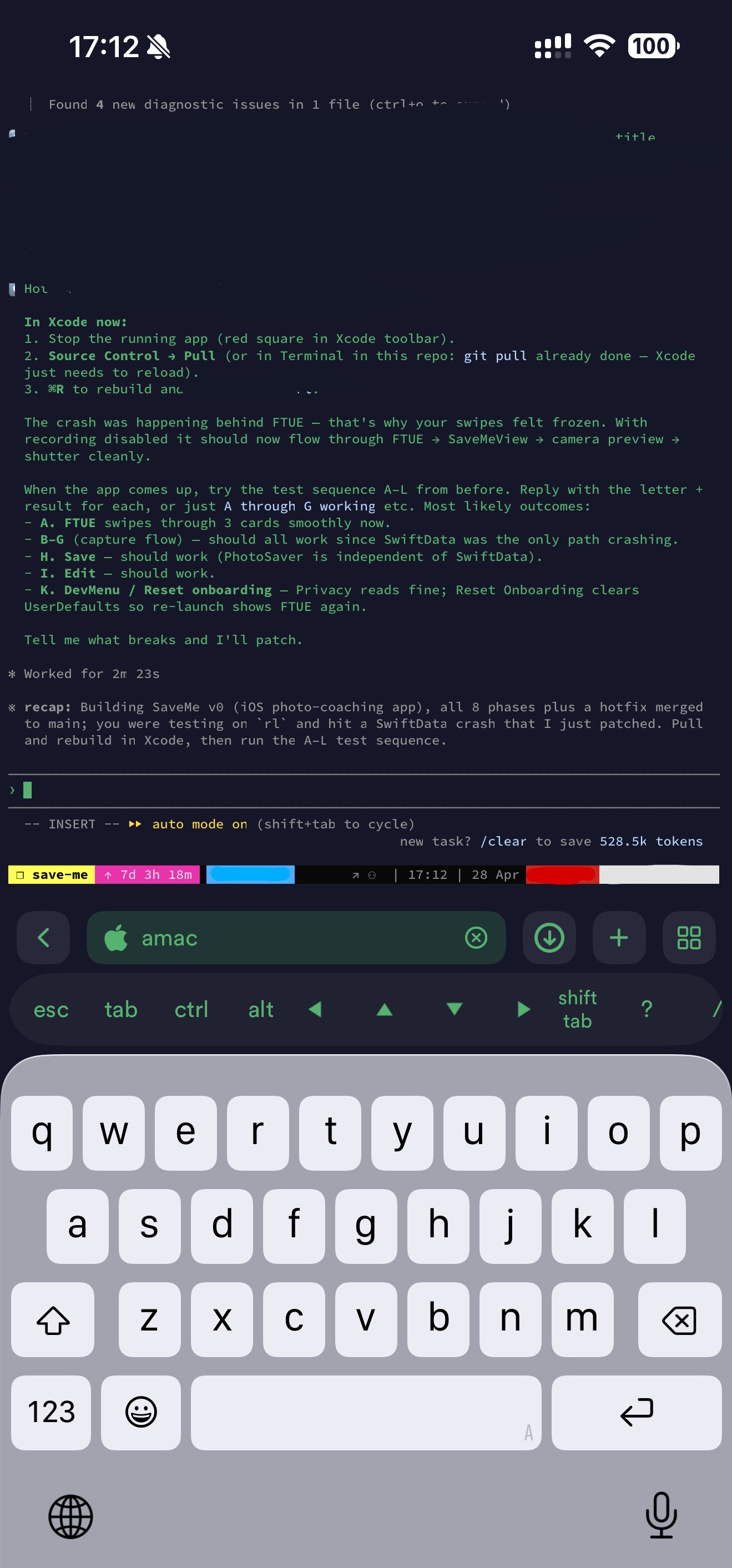
The key feature that makes Termius usable with tmux on iPhone is the shortcut bar. Esc, Tab, Ctrl, Alt, arrow keys, and Shift+Tab sit above the keyboard.
Without that row, using terminal on a phone feels like typing with boxing gloves. With that row, you can at least switch tmux sessions, answer one prompt, detach, and keep looking out the train window.
One small trick: auto-attach to tmux when SSH connects.
if [[ -z "$TMUX" && -n "$SSH_CONNECTION" && $- == *i* ]]; then
  tmux attach -t main 2>/dev/null || tmux new -s main
fi
The meaning is simple. If this is an interactive SSH login and we are not already in tmux, attach to main. If main does not exist, create it. That's it.
When you actually need pixels
Most work stays inside the terminal. But sometimes you really do need pixels.
For example, an agent launches a dashboard. Or a Jupyter UI. Or a tool simply refuses to run headless. Trying to solve that purely through terminal is like repairing a bicycle with chopsticks. Maybe possible, but you will question your life choices.
So I keep Chrome Remote Desktop and a VNC server on the home box. CRD is simpler and works through a browser. VNC is also fine, as long as it is bound to the Tailscale interface and not exposed publicly.
This layer is not for daily use. But for the 5% of tasks that really need a screen, it saves you.
PWA panel: not another terminal, a control room
Up to this point, we have tmux, Tailscale, and Termius. Is the problem solved? Not yet.
Because the hardest thing is not “can I type into a session?” The hardest thing is “which session should I look at right now?”
This is where the PWA panel appears.
I built a small PWA that turns each running CLI agent into a card. Each card shows:
- status: working, idle, waiting on input, offline,
- project tag,
- last interaction time,
- latest output,
- and notification when it needs human attention.
Tap a card and you get a chat-style view where you can send the next instruction directly. No SSH. No tmux navigation. No scrolling forever to find what it asked.
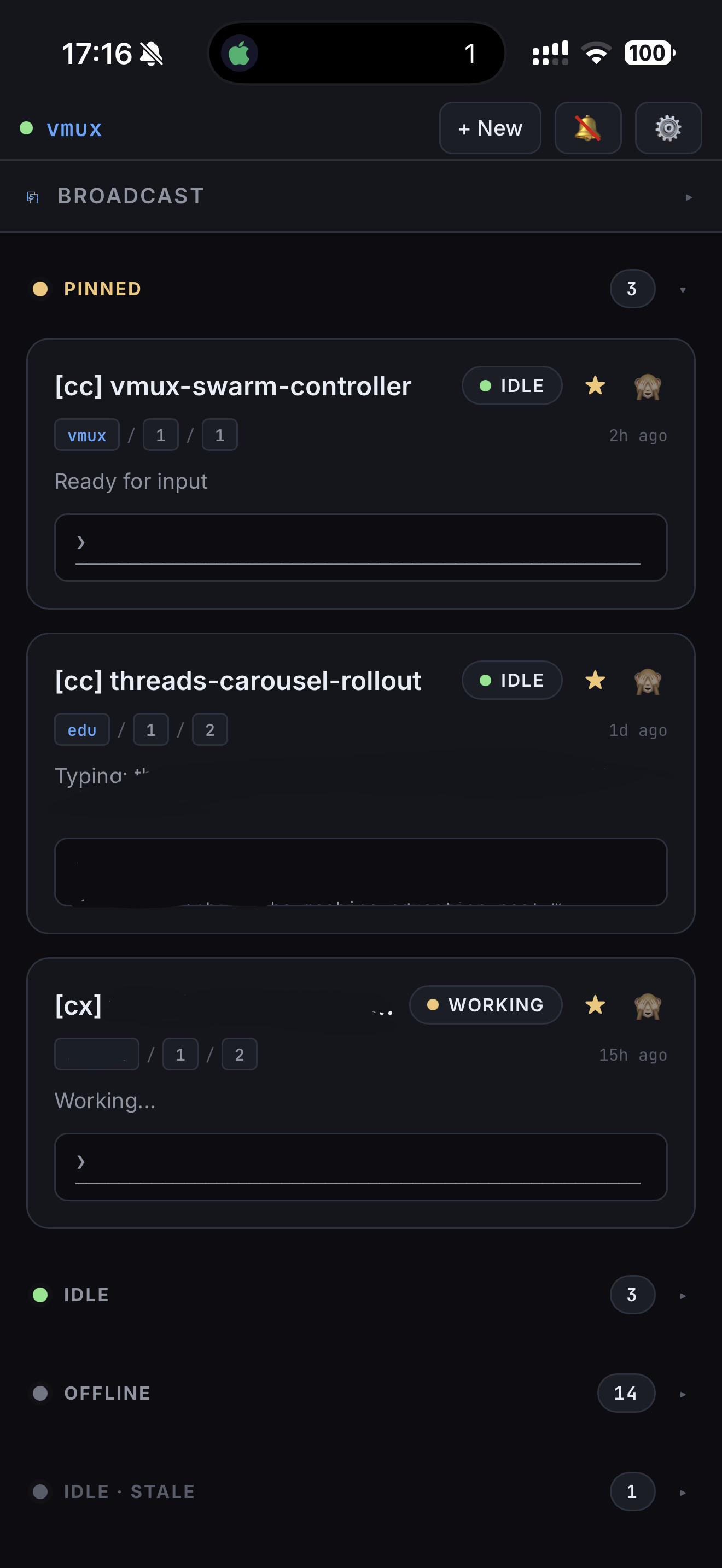
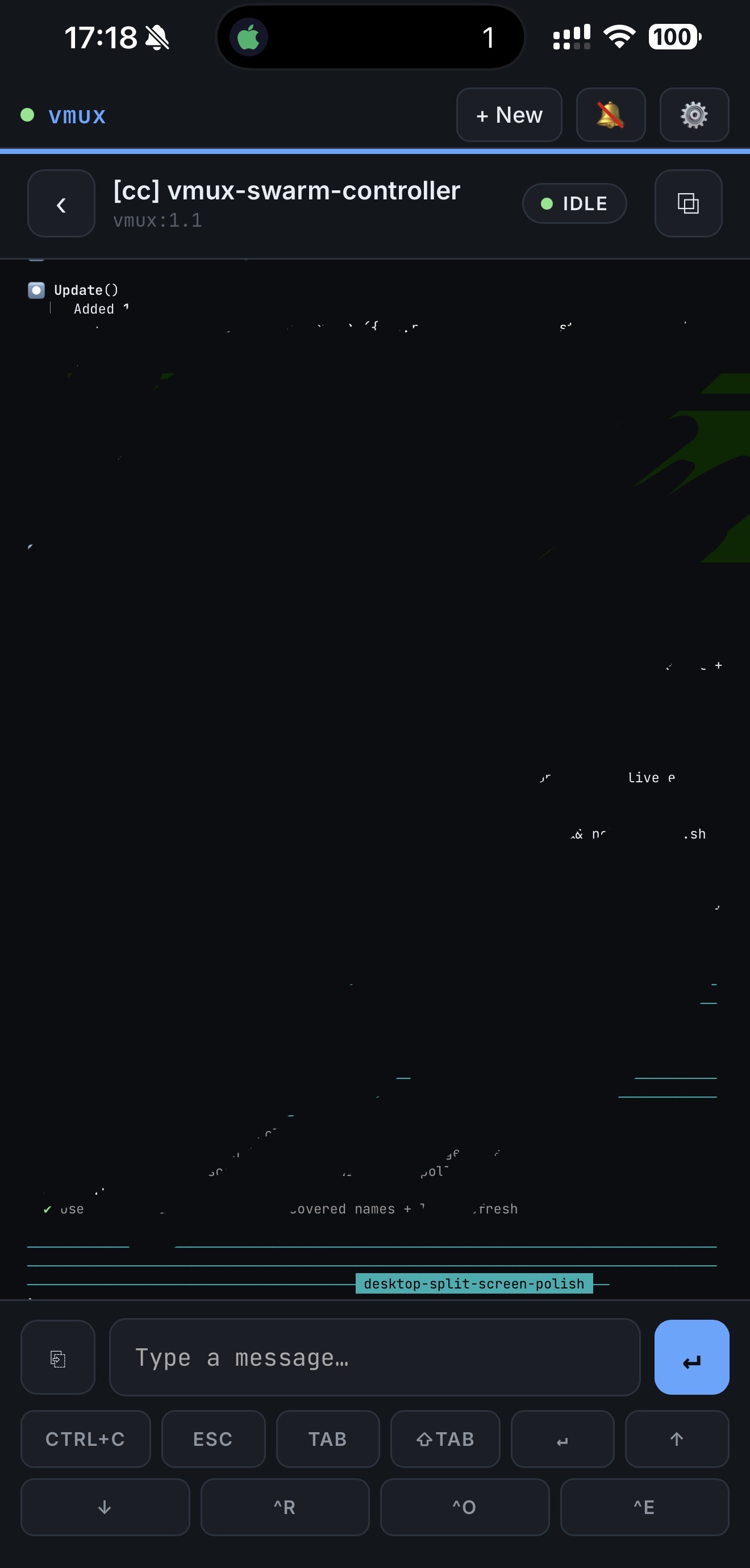
You can imagine this panel as an anime-style command room. The point is not that you personally operate every machine. The point is that you need a radar screen: which tile is red, which one can keep running, which one needs attention.
The analogy stops there. In the real system, the panel is not doing judgment for you. It simply concentrates scattered terminal state into one view so you waste less attention.
The more polished, open-source version of this idea is called vmux. The repo is currently just a placeholder. If it crosses 100 stars, I will start turning it into a real public project.
What I would add next
There are three things I want to add next.
First, let one agent read another agent's output without a human copy-pasting between them. If the human is only relaying messages, the human is an expensive message bus.
Second, broadcast mode. Select a group of sessions and send the same prompt to all of them. For example: “Run the tests and report the failure summary.” You do not need this every day, but when you need it, it feels very good.
Third, voice input. This is genuinely useful on buses. You do not want to type a long prompt while the bus is shaking. You want to say, “Push that branch and open a draft PR,” and then be done.
Setup guide: tmux, Tailscale, Termius
All right. We have finished the concept part. Now let's enter the part you can actually copy. The goal is not to memorize every setting. The goal is to get the smallest useful version running, then add pieces slowly.
tmux
macOS:
brew install tmuxOn Windows, use WSL. On Linux, use your package manager.
If you want comfortable defaults, use Oh My Tmux:
git clone https://github.com/gpakosz/.tmux.git ~/.tmux
ln -s -f ~/.tmux/.tmux.conf ~/.tmux.conf
cp ~/.tmux/.tmux.conf.local ~/
The commands you actually use all the time are basically these:
tmux a                # attach to last session
tmux new -s <name>    # create a new session
<C-b> z               # zoom current pane
<C-b> s               # pick a session
<C-b> q               # show pane numbers, then jump
<C-b> <n>             # jump to window n
Verification is also simple:
tmux new -s testIf you see a green status bar, you are inside tmux. Press Ctrl-b, then d to detach. Then run:
tmux a -t testYou are back. That is the minimum loop.
Tailscale
- Sign up at tailscale.com. The personal plan is free for up to 100 devices.
- Install Tailscale on the home box. On macOS:
brew install --cask tailscale. On Windows: download the installer from tailscale.com/download. - Install the Tailscale app on the phone and sign in with the same account.
- Turn on MagicDNS so you can connect by hostname instead of memorizing IPs.
Verification: the phone Tailscale app shows the home box as Active. Then open this in phone Safari:
http://<home-box>:<port>If you can see your local dev server, the private mesh is working.
Termius
- Install Termius from the App Store. The free tier is enough.
- Hosts → New Host. Enter the Tailscale MagicDNS hostname, port 22, username, and SSH private key.
- Settings → Terminal → Bottom bar. Add Esc, Ctrl, Tab, arrow keys, and Shift+Tab.
- Enable Auto-Reconnect so Wi-Fi ↔ cellular handoffs are less likely to break the session.
Smallest test:
- On the home box:
tmux new -s claude, start Claude Code. - Ctrl-b d to detach. Close the terminal.
- On the phone: open Termius, connect, then
tmux a -t claude. - Send one message to the agent.
Now you can control a desktop CLI agent from a phone over a private network. The minimal stack is just that.
Auto-attach to tmux on SSH
If you do not want to type tmux a every time, add this to ~/.bashrc or ~/.zshrc on the home box:
if [[ -z "$TMUX" && -n "$SSH_CONNECTION" && $- == *i* ]]; then
  tmux attach -t main 2>/dev/null || tmux new -s main
fi
Termius can also do this per host through Hosts → Edit → Startup Command:
tmux attach -t main || tmux new -s mainPick one approach. Do not make both sides too clever. The worst configuration is the one that you yourself cannot understand three months later.
Persist sessions across reboots
The tmux server lives in memory. A reboot, OS update, or accidental killall tmux will erase the sessions.
For an agent workflow, this hurts. What disappears is not only a terminal layout. It is in-flight context.
What do we do? Use three plugins:
- TPM: tmux plugin manager.
- tmux-resurrect: snapshot save and restore.
- tmux-continuum: automatic snapshots and auto-restore when tmux starts.
Install TPM:
git clone https://github.com/tmux-plugins/tpm ~/.tmux/plugins/tpmAdd the following to ~/.tmux.conf.local if you use the gpakosz config, or ~/.tmux.conf otherwise:
# Plugins
set -g @plugin 'tmux-plugins/tpm'
set -g @plugin 'tmux-plugins/tmux-resurrect'
set -g @plugin 'tmux-plugins/tmux-continuum'

# Capture pane scrollback so output is restored too
set -g @resurrect-capture-pane-contents 'on'

# Restore vim/nvim sessions and keep ssh panes alive
set -g @resurrect-strategy-vim  'session'
set -g @resurrect-strategy-nvim 'session'
set -g @resurrect-processes 'ssh psql mysql sqlite3 "~vim->vim" "~nvim->nvim"'

# Autosave every 15 min, auto-restore on tmux server start
set -g @continuum-save-interval '15'
set -g @continuum-restore 'on'

# TPM init must be the LAST line
run '~/.tmux/plugins/tpm/tpm'
Reload:
tmux source-file ~/.tmux.confThen press prefix + I inside tmux to install the plugins.
Verification loop: open a session, run a few commands, press prefix + Ctrl-s to save a snapshot, then run killall tmux. Open a new shell. Continuum should restore the layout, working directory, and visible scrollback.
One caveat. @resurrect-capture-pane-contents 'on' writes pane scrollback as plain text under ~/.local/share/tmux/resurrect/. If your panes may contain API keys or other secrets, either remove that line or make sure FileVault / disk encryption is on.
This is not paranoia. Agents often print surprising things. Do not let a recovery mechanism become a secret archive.
Recap
All right, let's summarize.
First, the 10+ CLI agent problem is not just about making models stronger. It is orchestration. Who is running, who is stuck, who needs a reply — all of that needs management.
Second, tmux gives every agent a fixed seat. Tailscale gives you a private connection. Termius makes the phone an emergency console. The PWA panel concentrates the state.
Third, the real punchline is to shorten every step between you and the agent. One less session switch. One less log scroll. One less terminal hunt. Then you are more willing to run many agents in parallel.
So running 10+ CLI agents sounds like a very advanced AI workflow. But if you open the box, it is actually very plain system design.
That is what I wanted to share today.
Further reading
If shell, vim, tmux, and the whole “living in the terminal” mindset are new to you, I recommend MIT's Missing Semester (2020). It is the course every CS program should have, but often does not. There is also a 2026 version.