同時駕馭 10+ 個 CLI 程式設計 agent 的設定方式
tmux、Tailscale、iOS 上的 Termius,加上一個小型 PWA 控制台 — 在桌面或火車上同時駕馭 10+ 個並行程式設計 agent 的方法。
本文為 LLM 自動翻譯,原文以 English 版本為準;另有 Lee Hung-yi-inspired English teaching-style version 與 李宏毅老師經典的教學風格版。

平常工作日裡,我會同時跑 10+ 個 CLI 程式設計 agent:Claude Code、Codex、Gemini CLI 混著用。 有些在跑長時程任務,像是功能開發、資料 pipeline、訓練工作、深入調查;有些在做雜事,像是 commit、PR、code review、文件。 幾個朋友問過我怎麼讓這一切不會崩成一團混亂,所以這篇就把整套設定寫下來。
技術組合
沒什麼花俏的:自家主機上跑 tmux + vim,Mac 用 iTerm 或 Ghostty,
Tailscale 處理遠端連線,
手機用 Termius,再加上一個我自己寫的小型 PWA 當作控制台。有趣的不是任何單一工具,
而是它們組合起來讓我在不同 agent 之間切換的成本有多低。
  ┌──────────────┐                              ┌─ home box ──────────────────────┐
  │ Mac          │                              │ tmux                            │
  │ (iTerm /     │ ◀───────┐                    │  ├─ session: project-a          │
  │  Ghostty)    │         │                    │  │   ├─ window: Claude Code     │
  └──────────────┘         │                    │  │   ├─ window: tests / logs    │
                           │      Tailscale     │  │   └─ window: git ops         │
  ┌──────────────┐         ├──── (private ─────▶│  ├─ session: project-b          │
  │ Phone        │ ◀───────┤      mesh)         │  │   └─ ...                     │
  │ (Termius +   │         │                    │  └─ session: ...                │
  │  PWA panel)  │ ◀───────┘                    │                                 │
  └──────────────┘                              └─────────────────────────────────┘
一個專案一個 tmux session
tmux 是 terminal multiplexer,裡面有三層概念: sessions(長期存在的工作區,通常一個專案一個)、 windows(session 裡的分頁,一個用途一個)、 panes(window 裡再切出的區塊)。Session 活在主機上, 所以關掉 terminal、Wi-Fi 斷線、從筆電切到手機,agent 都會繼續跑。 重新 attach 回去,就能從原本的地方接著做。
我的 layout:每個專案開一個 session(tmux new -s <project>),
一個 window 跑 agent、一個看 tests/logs、一個跑長時間 pipeline、一個處理 git。
長時程任務指派下去就讓它跑著;我切走、指派下一個 agent,等到有東西需要注意再輪回來看。
安裝方式和常用 key bindings 放在文末設定指南。
Tailscale:自家主機、零對外曝險
Agent 跑在我的自家主機上,因為 GPU 和磁碟都在那裡。Tailscale 把筆電、手機、那台主機放在同一個私有 mesh 裡,
所以不論我在哪登入,都能連到 SSH 和各種 prototype web server,而且完全不用把它們放上公網。
具體來說:我可以直接在手機上打開 http://homebox:8501 看 Streamlit prototype,
不用 port forwarding、不用 nginx、也不用公開 hostname。這比聽起來更重要:
我跑的東西有一半根本沒有 auth,我不想把腦力花在擔心這件事上。
手機上的 Termius
在外面的時候,我用 iOS 上的 Termius SSH 進去。Termius 真正讓 tmux 在手機上能用的關鍵, 是它的 shortcut bar:esc、tab、ctrl、alt、方向鍵、shift+tab,直接擺在鍵盤上方。 搭配 tmux prefix,我在火車上一隻手就能操作 Claude Code session。
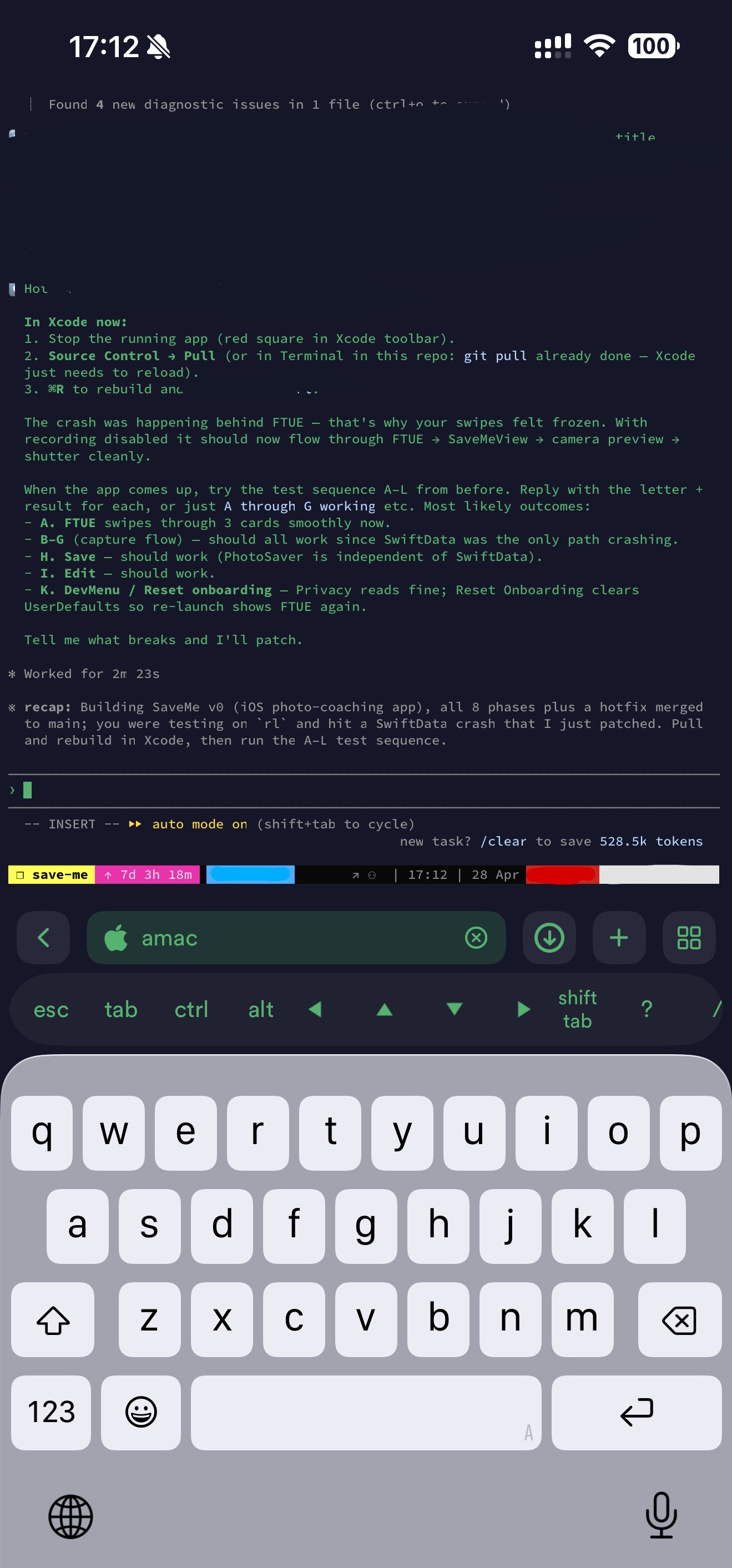
讓手機體驗真正順的技巧是:讓 SSH 連進來時自動 attach 到 tmux,
這樣每次 Termius 連線都會直接落在上一個 session,不需要再打一段 tmux a。
把下面這段加到自家主機的 ~/.bashrc:
if [[ -z "$TMUX" && -n "$SSH_CONNECTION" && $- == *i* ]]; then
  tmux attach -t main 2>/dev/null || tmux new -s main
fi
之後每次連線都會直接進到 main。如果你比較想在 Termius 裡針對單一 host 設定,
設定指南也有 Termius 端的版本。
真的需要 GUI 的時候
大部分工作都在 terminal 裡,但偶爾還是會需要看到畫面:某個 agent 起的 dashboard、Jupyter UI, 或某個無法 headless 跑的工具。這種情況我會在自家主機上裝 Chrome Remote Desktop 與 VNC server。 CRD 比較簡單,瀏覽器就能用;VNC 也可以,只要記得綁在 Tailscale interface 上,避免暴露在公網。 兩者都比 SSH 慢,但能應付那 5% 真的需要螢幕的工作。
缺失的那塊:一個總覽所有 agent 的控制台
真正的摩擦點不是「打字進 session」,而是找對那個 session: 哪個 agent 跑完了、哪個在等輸入、哪個已經安靜太久。 開 Termius、attach 到 tmux、跳到正確 session、往回 scroll,這一串大概要 20 秒。 十個 session × 一天幾十次檢查 × 二十秒,算一算就知道這東西該做。
所以我寫了一個小型 PWA,把每個正在跑的 CLI agent 攤成一張卡片,依最後互動時間排序。 每張卡片顯示狀態(working、idle、waiting on input)、 專案 tag,以及最新輸出。Session 跑完或提出問題時會推播通知。 點卡片會打開一個聊天式介面,可以直接送下一條指令,不用 SSH、不用在 tmux 裡切來切去。
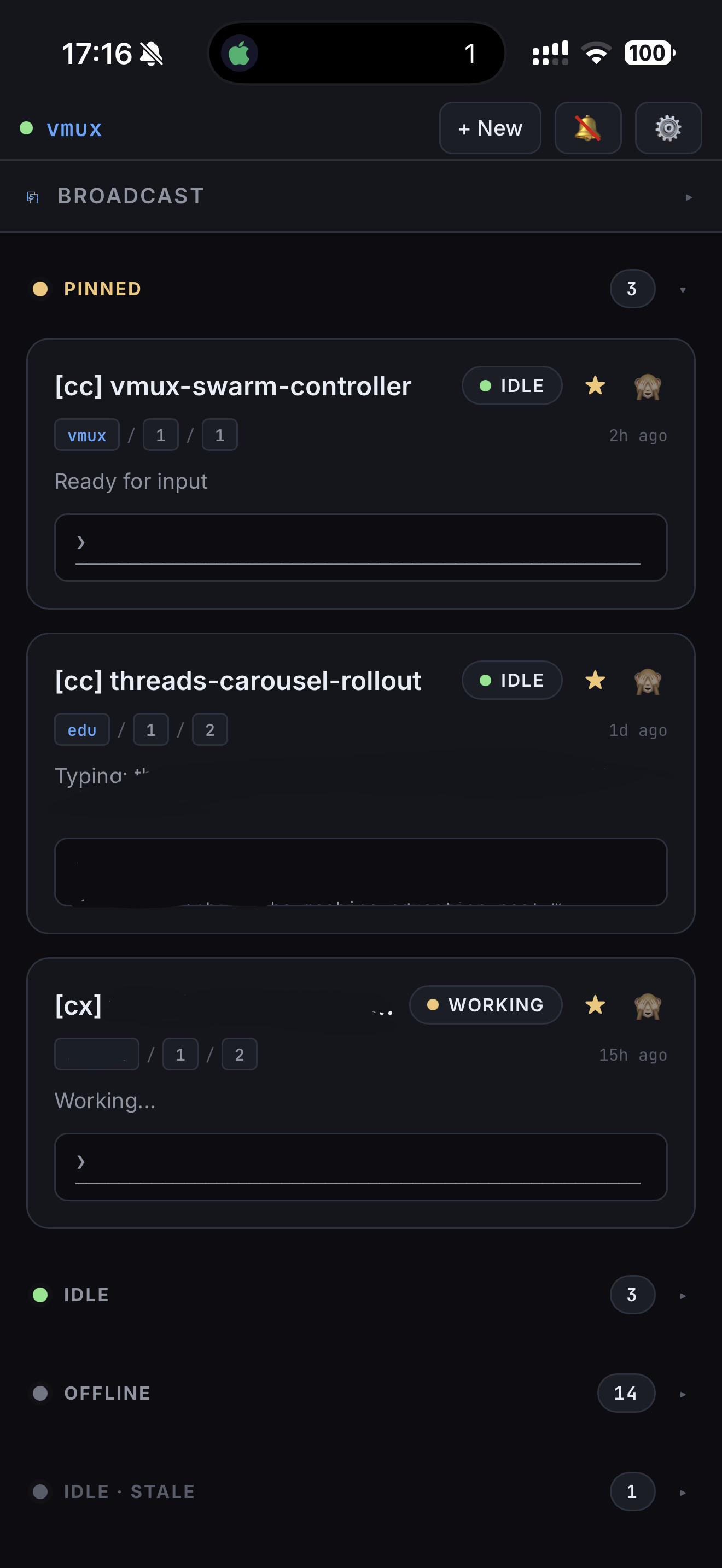
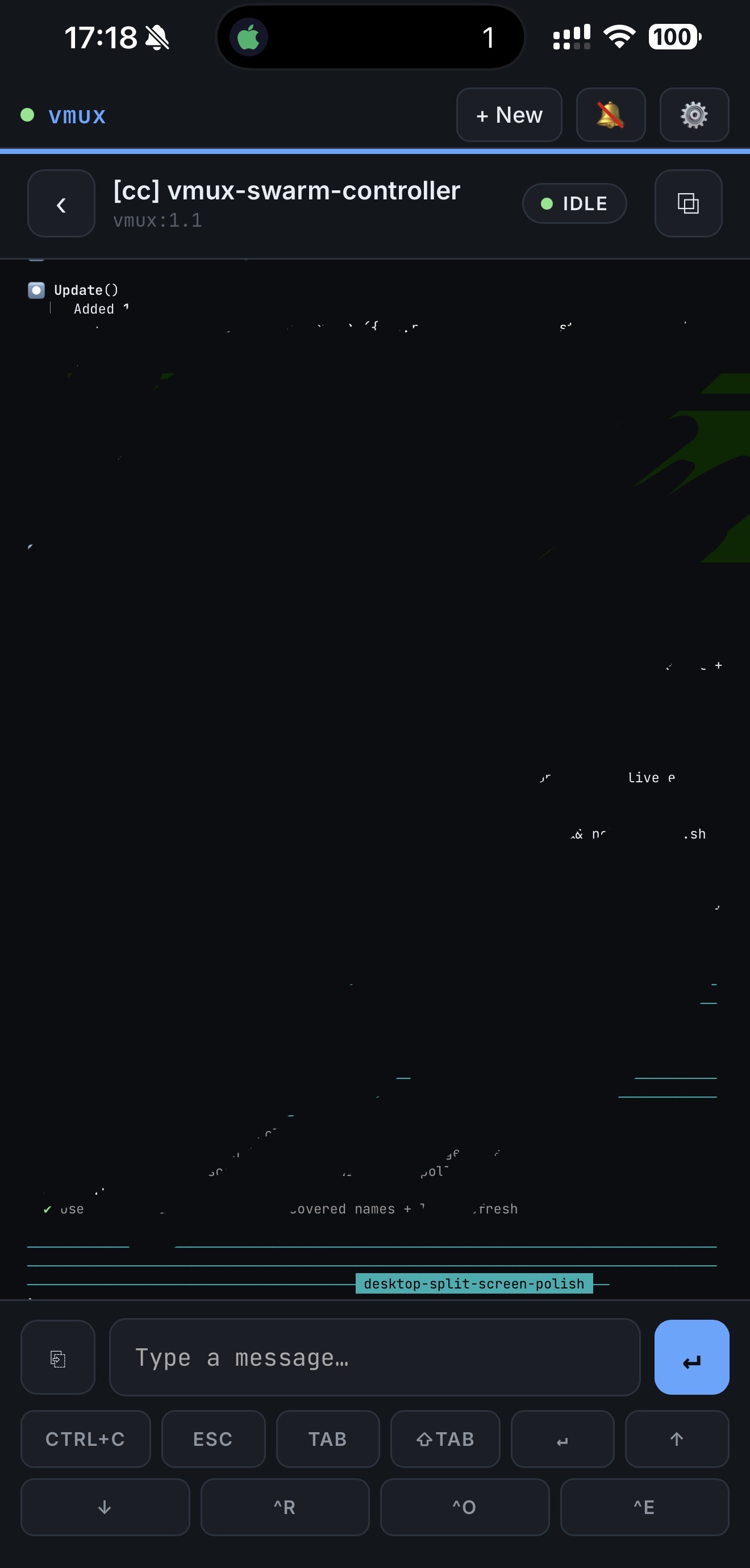
這是我今年對行動工作流最大的改進。我把這個更完整、開源版的計畫叫做 vmux。 目前 repo 只是個 placeholder。如果星數突破 100,我就會開始把它整理成真正可發佈的開源專案。 想投票就 star 那個 repo;第一版發佈時 GitHub 會自動通知你。
還想加上的東西
讓一個 agent 不用 copy-paste 就能讀另一個 agent 的輸出。 一個 broadcast 模式,可以對選定的一群 session 同時送同一個 prompt(控制台已經為這個保留位置)。 還有語音輸入,公車上很需要。
核心心得很簡單:把「你」與「agent」之間的每一步都壓短, 同時駕馭十個 agent 就不再像一份工作。
設定指南:tmux、Tailscale、Termius
如果你還沒把這三樣東西跑起來,下面是從零到「可以照著本文操作」的大約 20 分鐘路線。 已經有的話可以直接跳過。
tmux
安裝方式:macOS 用 brew install tmux;Windows 透過 WSL;Linux 用你的 package manager。
一組舒服的預設值(Oh My Tmux):
git clone https://github.com/gpakosz/.tmux.git ~/.tmux
ln -s -f ~/.tmux/.tmux.conf ~/.tmux.conf
cp ~/.tmux/.tmux.conf.local ~/
實際會一直用到的大概是這六個指令:
tmux a                # attach 到上一個 session
tmux new -s <name>    # 開新 session
<C-b> z               # 放大目前 pane
<C-b> s               # 挑 session
<C-b> q               # 顯示 pane 編號 → 跳過去
<C-b> <n>             # 跳到第 n 個 window
其他操作,看這兩份 cheatsheet 就夠: MohamedAlaa 的 gist (一頁版)和 tmuxcheatsheet.com (可搜尋)。
驗證:tmux new -s test 會看到綠色 status bar。
Ctrl-b d detach;tmux a -t test attach 回去。
Tailscale
- 到 tailscale.com 註冊(個人 100 台裝置以內免費)。
- 自家主機:macOS 用
brew install --cask tailscale;Windows 從 tailscale.com/download 下載 installer。 - 手機(iOS):App Store → Tailscale → 用同一個帳號登入。
- 打開 MagicDNS(admin console → DNS),這樣你的自家主機就能用
ssh arthur-laptop這種名字連,而不是靠 IP。
驗證:手機上的 Tailscale app 會顯示自家主機為「Active」;
在手機 Safari 打開 http://<home-box>:<port> 能看到你的本機 dev server。
Termius
- App Store → Termius(免費 tier 就夠)。
- Hosts → New Host。填 Tailscale MagicDNS hostname、port 22、你的 username,貼上 SSH private key。
- Settings → Terminal → Bottom bar。加入 Esc、Ctrl、Tab、方向鍵、Shift+Tab。這是最容易錯過、但最重要的功能。
- Settings → 打開「Auto-Reconnect」,這樣手機在行動網路 ↔ Wi-Fi 之間切換時不會直接斷掉。
SSH 連線時自動 attach 到 tmux
目標是讓每次 SSH 連線都直接進入 tmux session,而不是落到一個新的 shell。做法有兩種:
Server 端 — 加到自家主機的 ~/.bashrc 或 ~/.zshrc:
if [[ -z "$TMUX" && -n "$SSH_CONNECTION" && $- == *i* ]]; then
  tmux attach -t main 2>/dev/null || tmux new -s main
fi
這些 guard 會讓它只在互動式 SSH 裡觸發,所以 scp / rsync 不會受影響。
Termius 端 — Hosts → Edit → Startup Command:
tmux attach -t main || tmux new -s main這段還有第二個用途:重開機之後,它也會給 tmux-continuum 一個可以 restore 進去的 live server。
快速測試
- 自家主機:
tmux new -s claude→ 啟動 Claude Code → Ctrl-b d → 關掉 terminal。Agent 會繼續跑。 - 手機:打開 Termius,連線,
tmux a -t claude。對 agent 打一段訊息。 - 現在你已經能透過私有網路,從手機操控桌面上的 CLI agent。整套就是這樣。
讓 session 在重開機後恢復
tmux server 活在記憶體裡。斷電、OS 更新,或一次不小心的 killall tmux,
都會把所有 session 清掉。對長時間跑 agent 的工作流來說,這可能代表好幾小時的上下文直接消失。
三個 plugin 可以解決這件事:TPM(plugin manager)、
tmux-resurrect(snapshot save/restore),以及
tmux-continuum(定時自動 snapshot,tmux server 啟動時自動 restore)。
先安裝 TPM:
git clone https://github.com/tmux-plugins/tpm ~/.tmux/plugins/tpm
如果你用的是附錄裡的 gpakosz config,就把下面加到 ~/.tmux.conf.local;
否則加到 ~/.tmux.conf:
# Plugins
set -g @plugin 'tmux-plugins/tpm'
set -g @plugin 'tmux-plugins/tmux-resurrect'
set -g @plugin 'tmux-plugins/tmux-continuum'

# Capture pane scrollback so output is restored too
set -g @resurrect-capture-pane-contents 'on'

# Restore vim/nvim sessions and keep ssh panes alive
set -g @resurrect-strategy-vim  'session'
set -g @resurrect-strategy-nvim 'session'
set -g @resurrect-processes 'ssh psql mysql sqlite3 "~vim->vim" "~nvim->nvim"'

# Autosave every 15 min, auto-restore on tmux server start
set -g @continuum-save-interval '15'
set -g @continuum-restore 'on'

# TPM init — must be the LAST line
run '~/.tmux/plugins/tpm/tpm'
重新載入設定(tmux source-file ~/.tmux.conf),然後在任何 session 裡按
prefix + I 把 plugins 抓下來。Continuum 只有在機器上有一個活著的 tmux server 時才會自動 restore;
上面那段自動 attach snippet,就是每次登入時幫它開出 live server 的方式。
驗證整個 loop:開一個 session、跑幾個指令,按 prefix + Ctrl-s 存 snapshot,
跑 killall tmux,再開一個新的 shell。Continuum 應該會恢復 layout、工作目錄,
以及因為有 capture-pane-contents 而保留下來的可見 scrollback。
一個 caveat:@resurrect-capture-pane-contents 'on' 會把 pane scrollback 以純文字寫到
~/.local/share/tmux/resurrect/。如果你的 pane 裡有機會閃過 API key 或其他 secret,
要嘛拿掉那一行,要嘛確認 FileVault / 磁碟加密有打開。
附錄:~/.vimrc
~/.tmux.conf 直接用 gpakosz/.tmux
原樣 — 上游就是正解,貼 1900 行別人 repo 的內容沒意義。個人化覆蓋放進
~/.tmux.conf.local。值得貼出來的是下面這份 .vimrc,自己寫的,刻意精簡。
~/.vimrc
" Comments in Vimscript start with a `"`.

" If you open this file in Vim, it'll be syntax highlighted for you.

" Vim is based on Vi. Setting `nocompatible` switches from the default
" Vi-compatibility mode and enables useful Vim functionality. This
" configuration option turns out not to be necessary for the file named
" '~/.vimrc', because Vim automatically enters nocompatible mode if that file
" is present. But we're including it here just in case this config file is
" loaded some other way (e.g. saved as `foo`, and then Vim started with
" `vim -u foo`).
set nocompatible

" Turn on syntax highlighting.
syntax on
colorscheme delek

" Disable the default Vim startup message.
set shortmess+=I

" Show line numbers.
set number
set nu
set ai
set tabstop=4
set ls=2
set autoindent

" This enables relative line numbering mode. With both number and
" relativenumber enabled, the current line shows the true line number, while
" all other lines (above and below) are numbered relative to the current line.
" This is useful because you can tell, at a glance, what count is needed to
" jump up or down to a particular line, by {count}k to go up or {count}j to go
" down.
set relativenumber

" Always show the status line at the bottom, even if you only have one window open.
set laststatus=2

" The backspace key has slightly unintuitive behavior by default. For example,
" by default, you can't backspace before the insertion point set with 'i'.
" This configuration makes backspace behave more reasonably, in that you can
" backspace over anything.
set backspace=indent,eol,start

" By default, Vim doesn't let you hide a buffer (i.e. have a buffer that isn't
" shown in any window) that has unsaved changes. This is to prevent you from "
" forgetting about unsaved changes and then quitting e.g. via `:qa!`. We find
" hidden buffers helpful enough to disable this protection. See `:help hidden`
" for more information on this.
set hidden

" This setting makes search case-insensitive when all characters in the string
" being searched are lowercase. However, the search becomes case-sensitive if
" it contains any capital letters. This makes searching more convenient.
set ignorecase
set smartcase

" Enable searching as you type, rather than waiting till you press enter.
set incsearch

" Unbind some useless/annoying default key bindings.
nmap Q <Nop> " 'Q' in normal mode enters Ex mode. You almost never want this.

" Disable audible bell because it's annoying.
set noerrorbells visualbell t_vb=

" Enable mouse support. You should avoid relying on this too much, but it can
" sometimes be convenient.
set mouse+=a

" Try to prevent bad habits like using the arrow keys for movement. This is
" not the only possible bad habit. For example, holding down the h/j/k/l keys
" for movement, rather than using more efficient movement commands, is also a
" bad habit. The former is enforceable through a .vimrc, while we don't know
" how to prevent the latter.

" Do this in normal mode...
nnoremap <Left>  :echoe "Use h"<CR>
nnoremap <Right> :echoe "Use l"<CR>
nnoremap <Up>    :echoe "Use k"<CR>
nnoremap <Down>  :echoe "Use j"<CR>
" ...and in insert mode
inoremap <Left>  <ESC>:echoe "Use h"<CR>
inoremap <Right> <ESC>:echoe "Use l"<CR>
inoremap <Up>    <ESC>:echoe "Use k"<CR>
inoremap <Down>  <ESC>:echoe "Use j"<CR>
有問題、想分享你自己的設定,或想搶先試用控制台?歡迎在 LinkedIn 或 X 上找我。
延伸閱讀
如果這篇有任何概念對你來說是新的:shell 工具、vim、tmux、整套「住在 terminal 裡」的思維, 我毫不猶豫推薦 MIT 的 Missing Semester(2020 版)。 這是每個 CS 系都該有、但通常沒有的一門課。另外還有一個 2026 版 我自己還沒看完,但光是 2020 版就很值得長期反覆回來查。